How AI Agents Can See Desktop Apps Without Screenshots
AI agents don't need screenshots to see a desktop app. agent-desktop reads the accessibility tree instead. Here is how it works, and what I got when I asked an agent about my Obsidian notes.

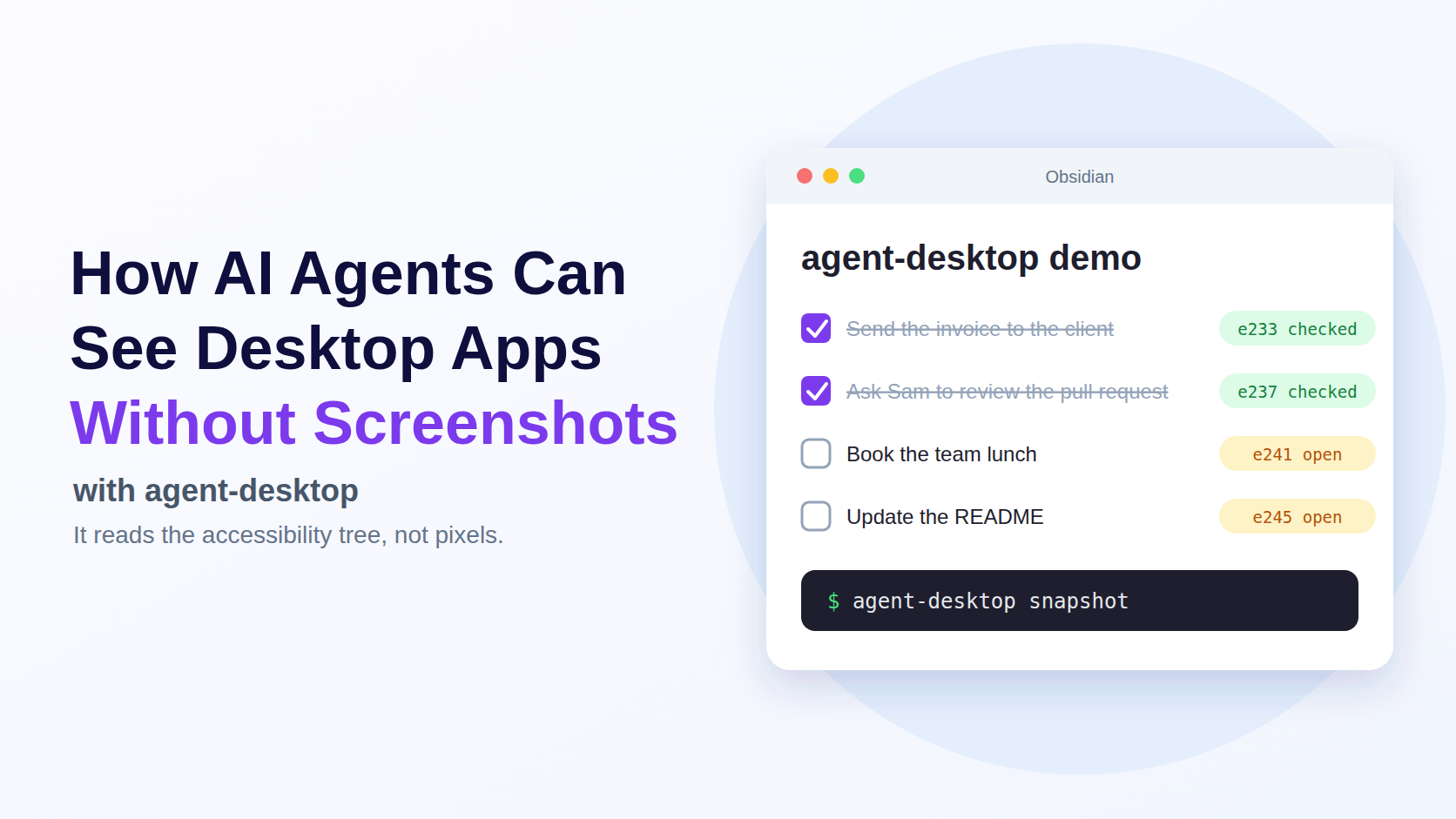
Many AI agents that control a computer work from screenshots. They take a picture of the screen, guess where the button is, and click.
agent-desktop works from the accessibility tree instead. This is the same information screen readers use to read apps out loud.
It's an open-source CLI from Vercel Labs, under the Apache-2.0 license. It runs on macOS, Windows and Linux.
It has no AI inside. It reads the app and returns what it finds as JSON. The agent you connect to it, like Claude Code, decides what to do.
In this article, I'll set it up with Claude Code and look at what it returns for a real app. Then I'll ask Claude a simple question about my Obsidian notes.
I'll use Obsidian as the test. It's a desktop app, and I want to see what an agent can learn from its window alone.
Setting it up
Install it with npm:
npm install -g agent-desktop
Then check that it can reach the accessibility system:
agent-desktop status

If accessibility shows as granted, you're ready.
agent-desktop has an MCP server built in. This command adds it to Claude Code:
claude mcp add agent-desktop -- agent-desktop mcp

Claude Code can now use agent-desktop's commands as tools. You can also run the same commands from the shell, which is how I show the output below.
There is one more step on Linux. An app only shows up if it registers with the accessibility system. Many desktop apps do this on their own, but Slack is built on Electron, and it needs a flag:
slack --force-renderer-accessibility
Without it, Slack showed me only its menu bar. With it, I got the full window.
Obsidian was a little different, because mine runs as a Flatpak. I gave it access to the accessibility bus once, and started it with the same flag:
flatpak override --user --talk-name=org.a11y.Bus md.obsidian.Obsidian
flatpak run md.obsidian.Obsidian --force-renderer-accessibility
After this, Obsidian appears in agent-desktop list-apps. On my machine it's listed as xdg-dbus-proxy, and not as obsidian.

What is the accessibility tree?
Every app tells the operating system what's in its window: buttons, text, menus. A screen reader uses this to read the app out loud.
It's a tree. A window has groups, groups have buttons and text, and each item has a role, a name and a state.
I made a small note in Obsidian with four tasks, and ticked two:

This is the command that reads the window:
agent-desktop snapshot --app xdg-dbus-proxy --compact --max-depth 40
And this is one checkbox from the result:
{
  "role": "checkbox",
  "ref_id": "@skyk1hwakht4e:e233",
  "states": ["checked"],
  "available_actions": ["Toggle", "RightClick", "Click", "SetFocus"]
}

What each part means:
rolesays what the element is. This one is a checkbox.statessays what it is doing right now. This box is checked.available_actionslists what you can do to it.ref_idis its address. We'll look at that next.
The task text is a separate item next to the checkbox. Claude matches them up.
How agent-desktop works
There are four layers between Claude and the app:

- Claude Code decides what to do.
- agent-desktop turns that into commands, and returns the app's tree as JSON.
- The accessibility API is how the operating system talks to apps. It is AT-SPI on Linux, AX on macOS and UI Automation on Windows.
- The app is Slack, Obsidian or anything else.
Claude points at things with refs, and not with coordinates. Every element you can use gets a ref, like @skyk1hwakht4e:e233.
The first part is the snapshot ID. The second part is the number of the element in that snapshot.
So the agent says "use e233 from this snapshot", and not "click at x=412, y=630". A ref is only valid for the snapshot it came from.
agent-desktop has no loop of its own. The loop lives in Claude.
Each command does one small thing and prints one JSON result. Claude runs them in four steps.
1. Look. Claude takes a snapshot of the app.
agent-desktop snapshot --app <app> -i --compact
The result is the tree, with a ref on every element Claude can use.
2. Decide. Claude reads the tree and picks what matters.
This step happens inside Claude. agent-desktop only supplies the facts: names, roles, states and refs. If the question is "which tasks are open?", Claude looks at the checkboxes. If the job is "press Save", it looks for the button named Save.
3. Act. Claude uses a ref to click, toggle or type.
agent-desktop click @<snapshot>:e<N>
By default, agent-desktop does this through the accessibility API. It doesn't move your mouse or take over your keyboard. You can keep working while it runs.
The result says what happened. This is a click I sent to a Help button in Slack:
"steps": [{ "mechanism": "semantic_api", "outcome": "succeeded" }],
"disposition": { "delivery": "delivered_unverified", "retry": "unsafe" }
semantic_api means it used the accessibility action, not a fake mouse click. delivered_unverified means the click was sent, but agent-desktop can't promise it did anything.
So Claude can't just assume it worked. It checks.
4. Check. Claude takes another snapshot and compares.
Did the box get ticked? Did a new window open? Claude decides from the new tree, not from the result of the click.
If the screen changes and Claude uses an old ref, the tool returns an error like STALE_REF. Claude then looks again, and picks a new ref.
The result also says whether a retry is safe. Claude should only repeat an action when it says safe. Otherwise a click could happen twice.
In the demo below, I only use Look and Decide. That's already enough to answer real questions about an app.
A full snapshot of a big app can get large, so there are flags to keep it small:
-ikeeps only the items you can interact with.--skeletongives a shallow overview, with a count of what's hidden below each branch.--root <ref>reads only one part of the tree.--compactremoves empty wrapper levels.
On Slack, a skeleton snapshot was about 2.6 KB. The interactive one was about 19 KB.
One more thing: snapshots stop at a depth of 10 by default. On Slack, that hid every message. Adding --max-depth 40 fixed it.
Trying it on my Obsidian note
I asked Claude one question: which tasks in my Obsidian note are still open?
I didn't install a plugin or export anything. Claude just read the window.
This is only a demo. Notes like these are plain files, so you could read them in other ways. The point is what an agent can learn from the window alone.
I opened a fresh Claude Code session with the MCP server connected, and typed:
Use agent-desktop to read the Obsidian window (the app is named xdg-dbus-proxy). Which tasks in the "agent-desktop demo" note are still open?
Claude called agent-desktop 3 times and answered in 26 seconds. It reads the window with a command like this:
agent-desktop snapshot --app xdg-dbus-proxy --compact --max-depth 40
The snapshot of my window had about 260 refs. Four of them were checkboxes.
Claude read the tree. Two checkboxes had "states": ["checked"]. The other two had no state.
It matched each checkbox with the text next to it, and answered:
Two tasks are still open: Book the team lunch and Update the README.

Before I ticked anything, all four boxes had no state. After I ticked two by hand, the same command returned checked on two of them.
So Claude saw the real state of the app, not a guess from a picture.
agent-desktop vs other ways
A common way to let an AI agent use a desktop app is with screenshots. Anthropic's computer use tool is one example. It gives Claude screenshots, plus mouse and keyboard control. After a batch of actions, Claude usually takes another screenshot to see what happened.
It works on any app you can see on screen. That's a big plus.
The downside is that the agent works from pixels. It has to read text out of an image and work out where to click.
Some tools mix both. They take screenshots and also use the accessibility system for clicking or typing. agent-desktop goes the other way: the accessibility tree is how it sees the app.

agent-desktop gets the same information straight from the app. The text is exact, and a checkbox comes with its state.
| Screenshot agent | agent-desktop | |
|---|---|---|
| What it reads | An image of the screen | The accessibility tree, as JSON |
| How it points | Coordinates | Refs |
| Works on | Any app you can see | Apps that expose an accessibility tree |
| Your mouse and keyboard | Used by the agent | Left alone by default |
If an app doesn't expose a tree, screenshots are still the only way in.
You might expect the output to be smaller than a screenshot, but not always. My full Obsidian snapshot was about 41 KB of JSON. That's what the flags are for. Claude can read the outline first, then open one part.
Claude Code on its own works with your files and your terminal. It can't see a desktop app unless you give it a tool. Browser tools cover web pages, and agent-desktop covers the desktop apps next to them, like Slack, Obsidian or an internal company tool.
And if the app has an API, use the API. It's faster and more reliable than reading a screen. agent-desktop is for the apps that don't have one.
So, is it worth trying?
I think so, if you have an app that Claude can't reach any other way. Here is where I'd use it:
- Apps with no API. Internal tools, older desktop software, and other apps that don't offer one. Claude can read what's on screen without a plugin.
- Checking an app after a change. Take a snapshot and check that the right items and states are there. It could help when testing desktop apps.
- Asking questions about what's open. "What's in this window?" or "Which items are marked done?" works in any app you can make visible.
What I liked most is how plain it is. Every command prints JSON, so you can run it yourself and see exactly what Claude sees. There's no hidden model, and no guessing from pictures.
On Linux, Slack and Obsidian needed a couple of extra steps. After that, reading them worked well.